Aria Operations Management Pack Builder – phpIPAM Part 2
Welcome back to this Aria Operations Management Pack Builder series, in Part 1 we covered how to authenticate to your API endpoint.
In this post we can get to the fun stuff. We’ll create some API calls to pull subnet and IP information from phpIPAM, and create some relationships (e.g. Subnet -> IP Address -> VM)
Section 1 – Requests
Browse to the “Requests” tab in the MP Builder, and click “Add”
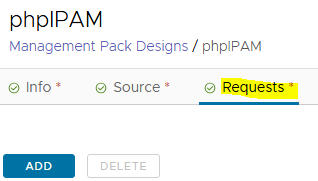
The first option is regarding chained-requests. This is only required if you need to include fields from another API call. We’re just making a simple GET request, so no need for that.
If we refer to the documentation:
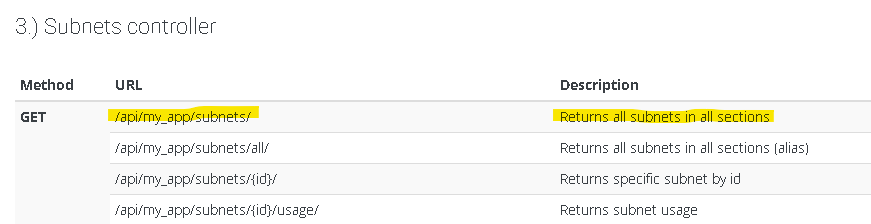
So we’ll make a GET call to the /subnets URL
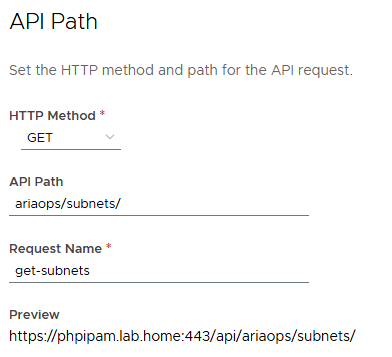
We can skip the advanced tab, and now test the request.
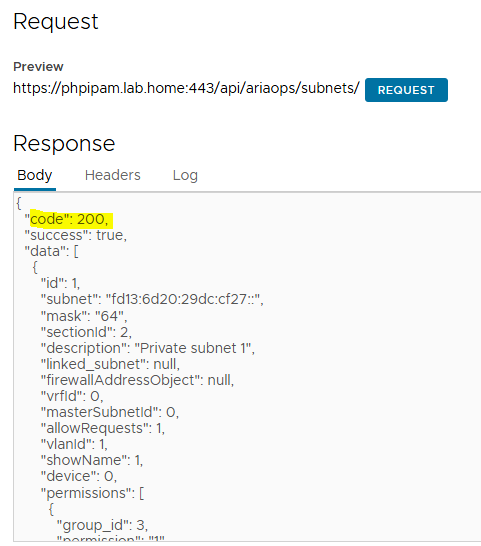
HTTP 200 = we’re good. Now we’ll repeat the same for the IP Addresses API call. Click save and we’ll create another request.
Refer to the API documentation again:
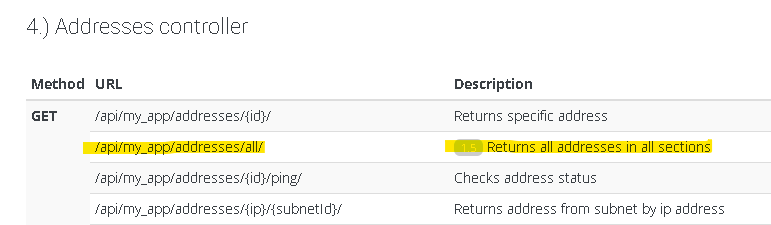
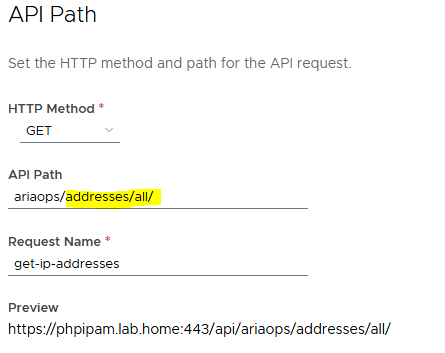
We want /addresses/all so configure this in MP Builder
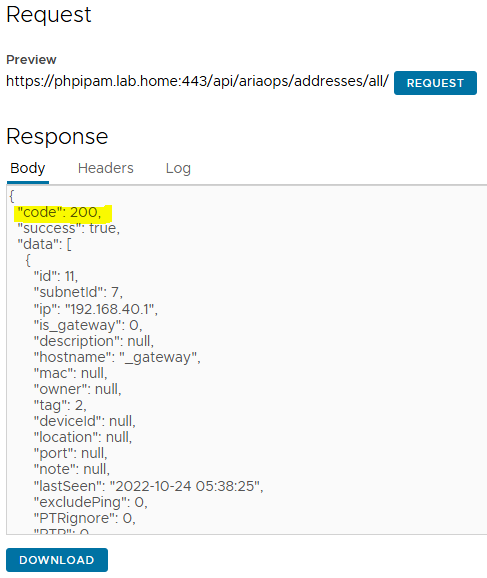
Test the request again, we should get HTTP 200 and a list of all allocated IP addresses from phpIPAM.
That’s our requests sorted out. Now we need to configure what fields we’re going to pull from these
Section 2 – Objects
The Objects configuration allows us to select what fields from the JSON Response that we want to bring into Aria Operations. It might be a static property such as a name/description or a numerical value like a throughput or CPU usage metric etc.
Browse to the “Objects” tab and we’ll see the extracted fields. Some we don’t care about, but I’m thinking here about what fields I want to see in a dashboard.
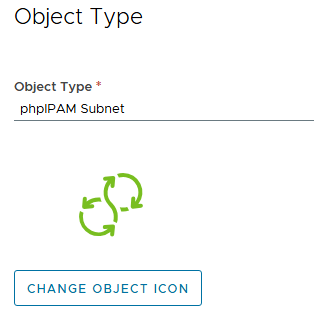
We’ll start with Subnets – Click “Add New”. Name the object type and pick an icon.
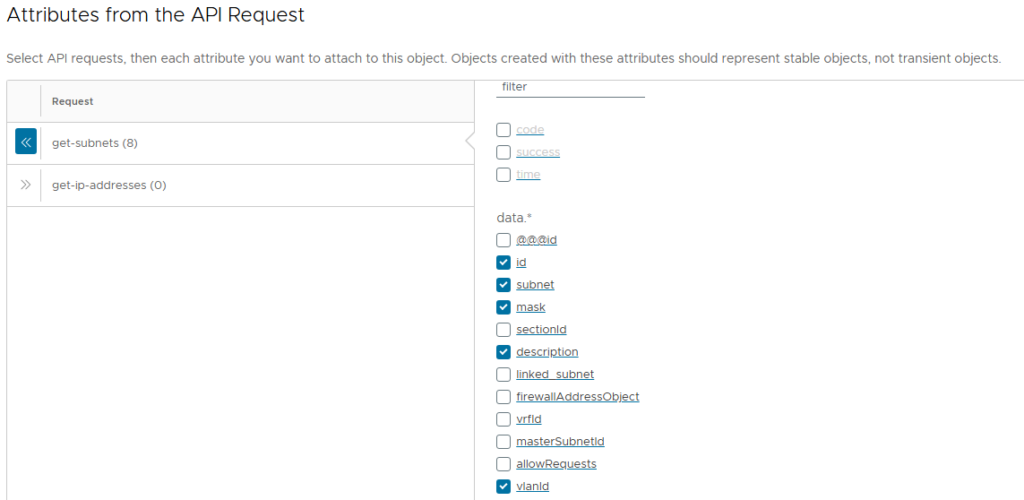
The extracted fields will be displayed on the next page when we select the request type. Here we select which fields we want to bring into Aria Ops.
I’ve selected id, subnet, mask, description, vlanId, isFull, location and lastScan.
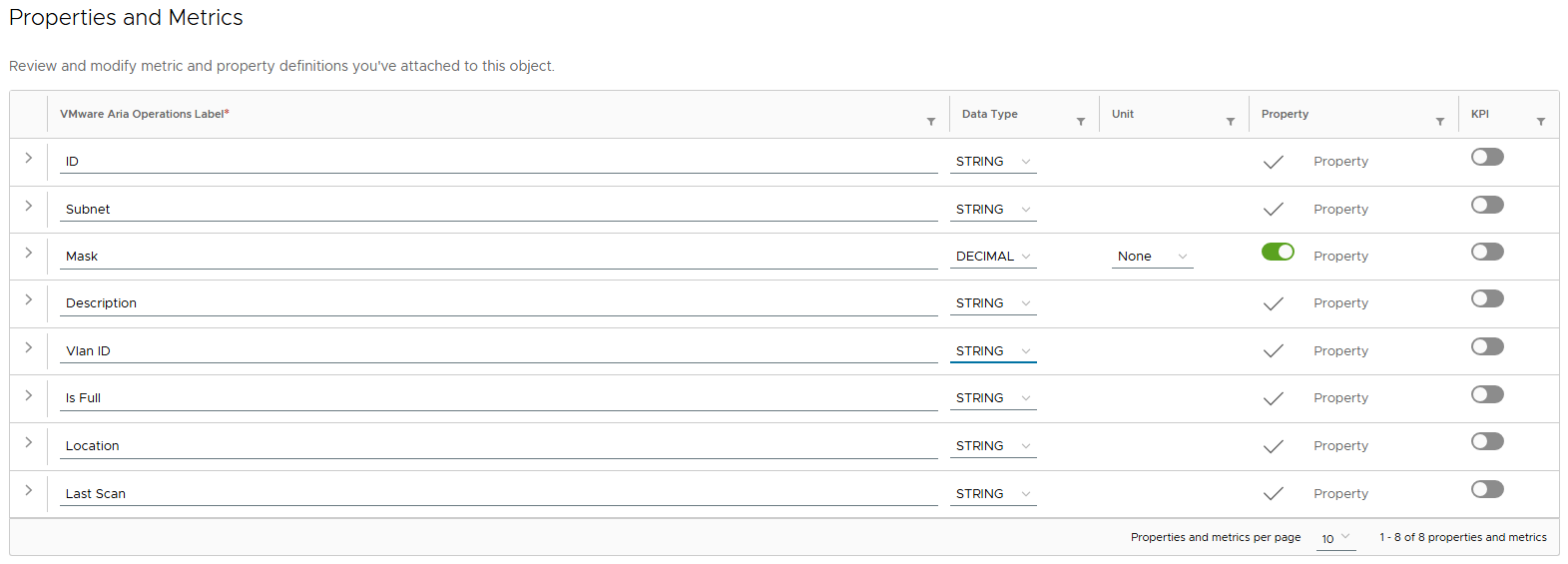
On the next screen, we can select the data types for each field.
I’ve configured them all as Strings as they are static properties, except for Subnet Mask as I’ll need to use this in a mathematical supermetric later to calculate how full the subnet is – we’ll need it to be a numeric type.
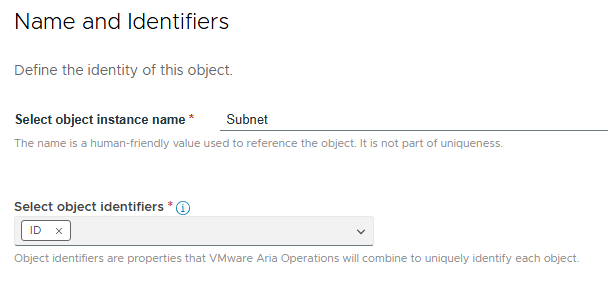
On the last screen, we’ll configure the naming and identifiers. I’ve selected the “Subnet” field to be the object instance name which will show up in Aria Operations, and ID as the unique identifier as this is how the subnet is recorded in the phpIPAM database. Note – the object identifier must be a “STRING” type or you cannot select it.
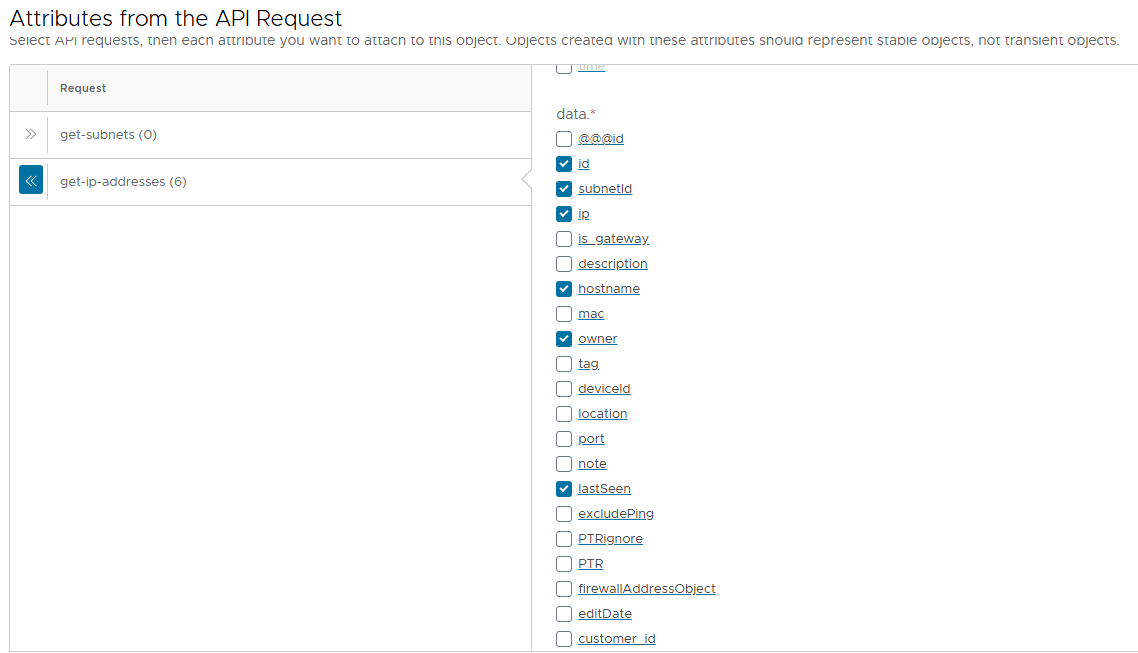
Now we’ll repeat with the IP Addresses request and select the IP fields we want to collect, and their data types.
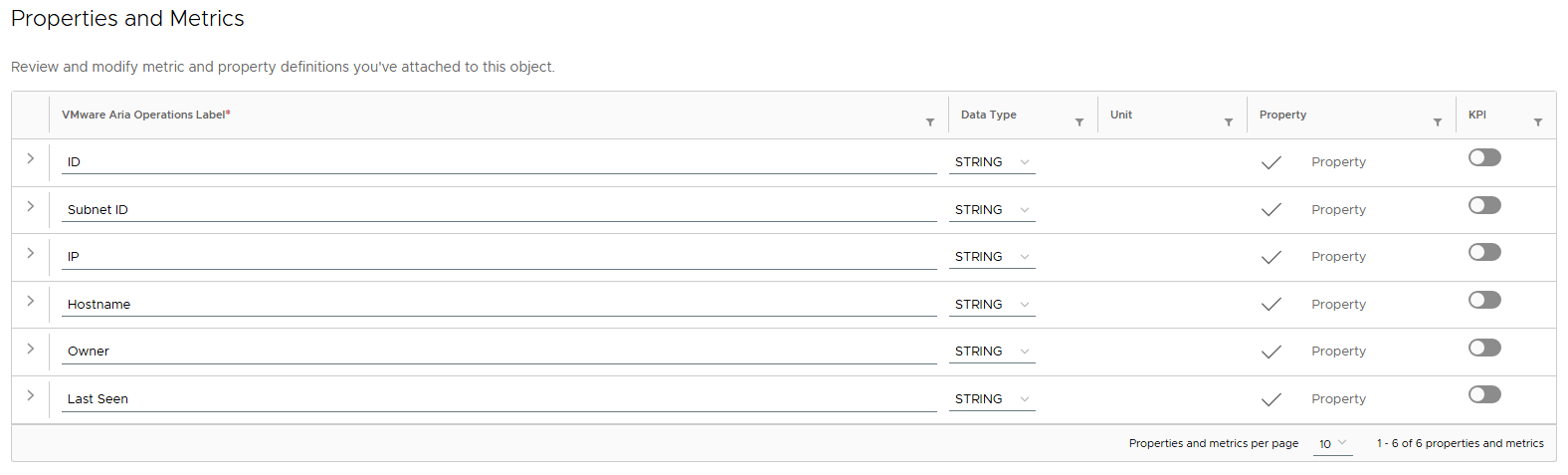
And we’re done with Objects. We could extend this further with anything that is in phpIPAM such as VLAN IDs, VRFs etc. which I might look at for version 2.0. If the API can pull it, then the sky is the limit!
Section 3 – Relationships
The objects have now been configured, but at the moment they are all on their own. We need to configure some relationships to show how these objects link together.
Depending on the API endpoint, you might need to do a little digging around with an API client, but luckily phpIPAM is pretty simple.
First up we’re going to create a Parent-Child relationship between Subnet (Parent) and IP Address (Child). IPs live in the Subnet.
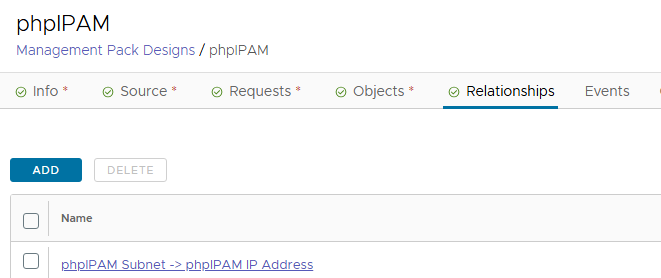
Browse to the Relationships tab and click Add
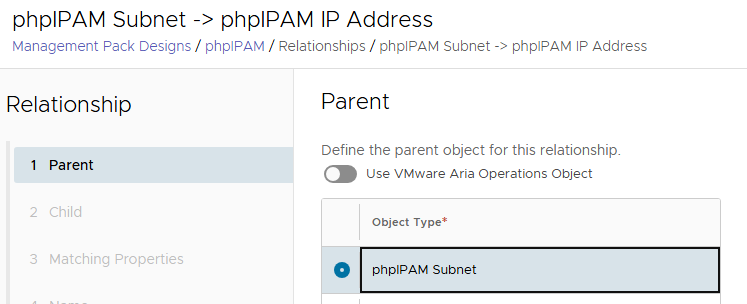
Pick the Parent Subnet Object:
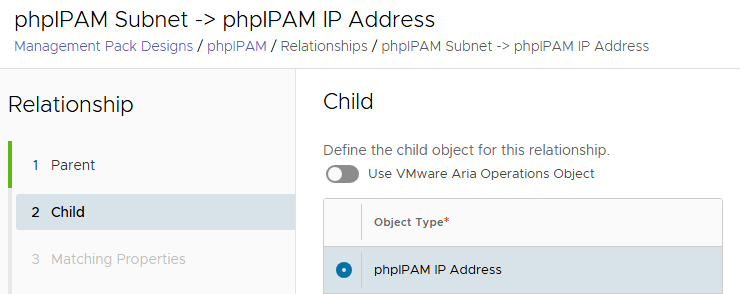
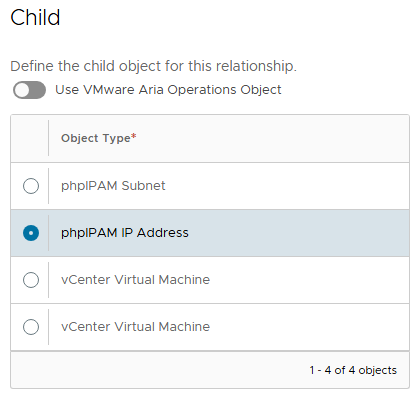
And select the Child IP Address object:
Click Next and we configure the link between the two. If we refer back to the test API calls (we can also test this with an API client like Postman or Insomnia).
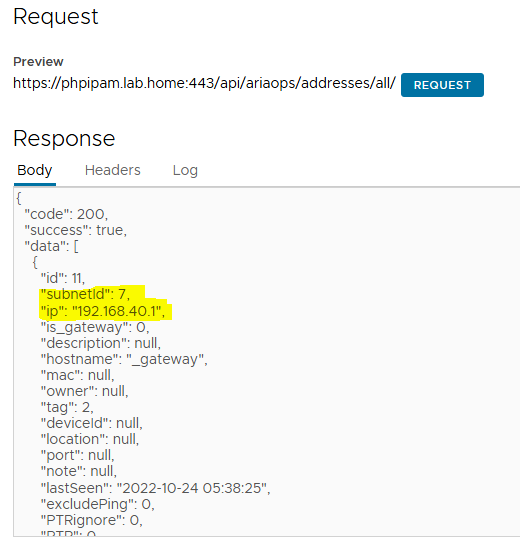
The IP address query shows the field subnetID = 7
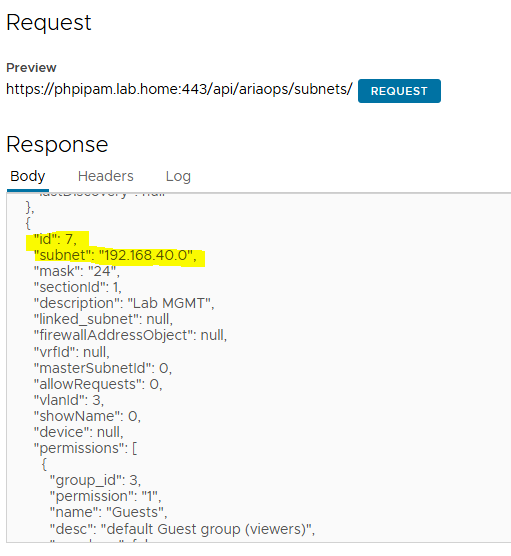
If we look at the Subnet query for 192.168.40.0/24 it has an ID = 7
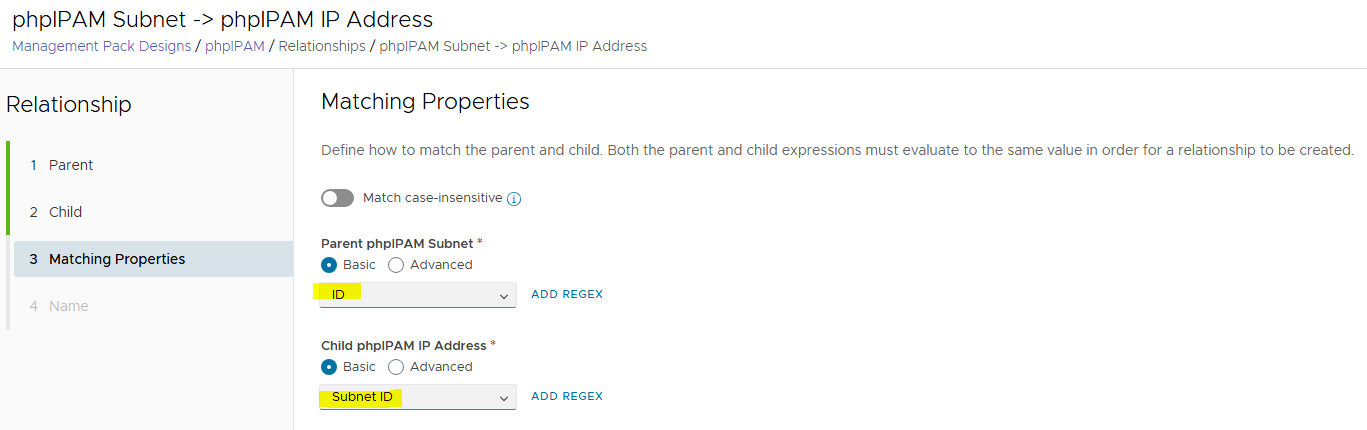
So we can determine that Subnet (id) = Address (subnetId) and this is how they are linked.
Configure the relationship
I’m also going to create another relationship using some default Aria Ops fields. I want to link a Parent VM to the Child phpIPAM IP Address object.
There’s 2 places where this is recorded in Aria Ops – Network|IP Address and Summary|Guest Operating System|Guest OS IP Address.
Create a new relationship, but this time we’ll select a Aria Operations Object as the parent. Search for Virtual Machine and we can pick the attribute to link.
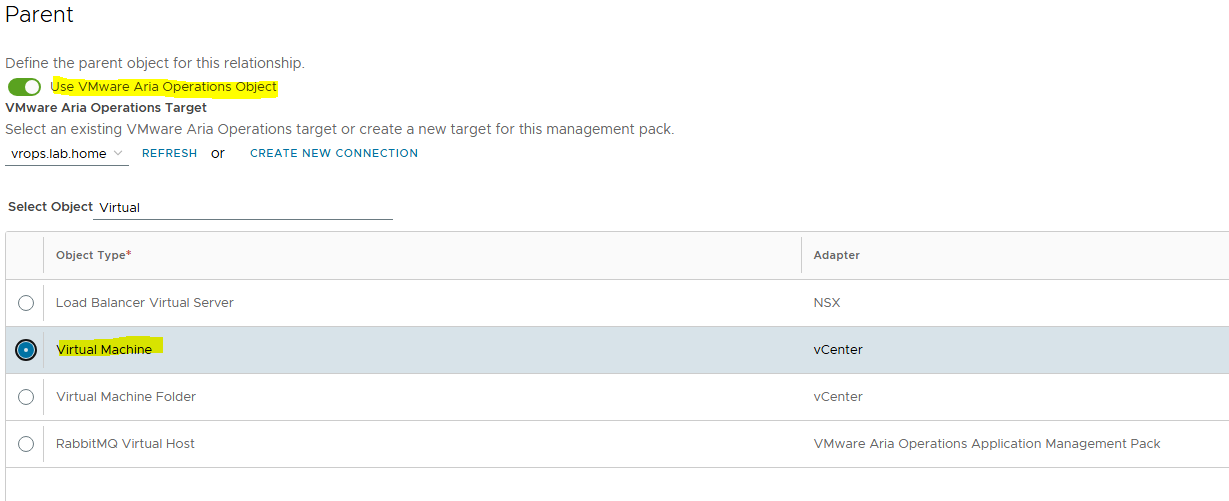
IP Address will be the child here.
Now we select the matching properties – Parent Summary|Guest Operating System|Guest OS IP Address -> Child IP Address
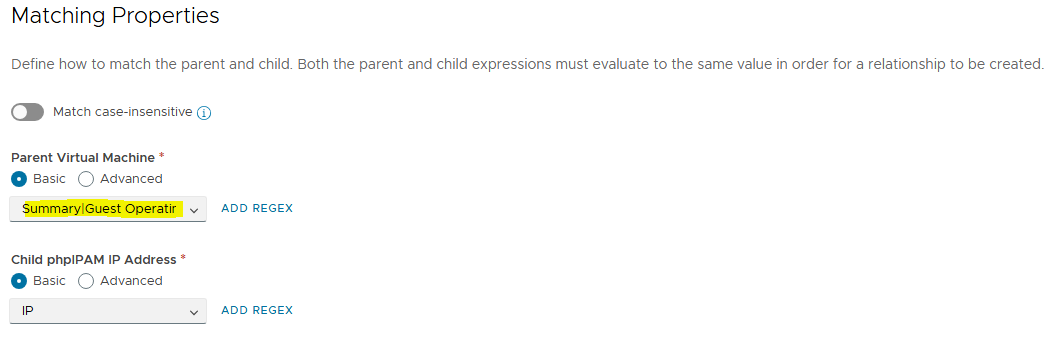
And I’ve repeated the same for Network|IP Address as well.
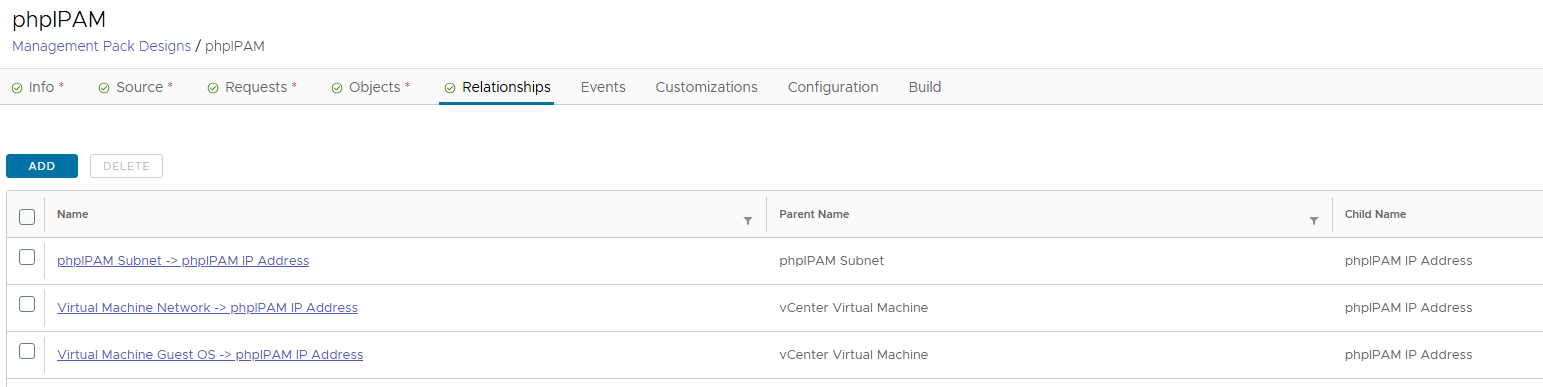
Our relationships are now created, so we are done with Part 2. Stay tuned for Part 3 where we will deploy the MP into Aria Operations and start to look at the data.